
Who this helps
For sending blank paper or a study pack to another device. PDF destinations depend on browser and operating system.
Choose the right file
Download SVG keeps vector paper with physical dimensions. Export Settings keeps editable JSON. Print / Save as PDF opens the browser, where a PDF destination can create a fixed document. The site has no separate PDF conversion service and does not read the saved file.
Inspect the saved document
Open the PDF and check page count, orientation and page properties in a viewer that shows dimensions. A4 portrait targets 210 × 297 mm. Page-width and page-height checks describe the file, not your printer’s accuracy. Check the pattern separately and measure a real printed span before relying on its scale.
Reproducible settings
- Paper size
- A4
- Orientation
- Vertical
- Display units
- Millimeters
- All margins
- 12 mm
- Pattern color
- #8aaccb
- Grid spacing
- 5 mm
- Line width
- 0.2 mm
- Major line every (0 = off)
- 5
Create it step by step
- Open the graph configuration: A4 portrait, Millimeters, All margins 12, Grid spacing 5 and Major line every (0 = off) 5. Check Line width 0.2 and Pattern color #8aaccb in Line appearance.
- Open Export / Import Settings and select Export Settings for an editable backup.
- Select Print / Save as PDF and a PDF destination if available. Match size/orientation, use 100% / Actual Size, disable fitting and headers and footers, and save one copy.
- Open the actual saved file. This example should have one page. Check dimensions separately from geometry. When printing later, check the viewer scale and measure a real sheet.
Generated sample
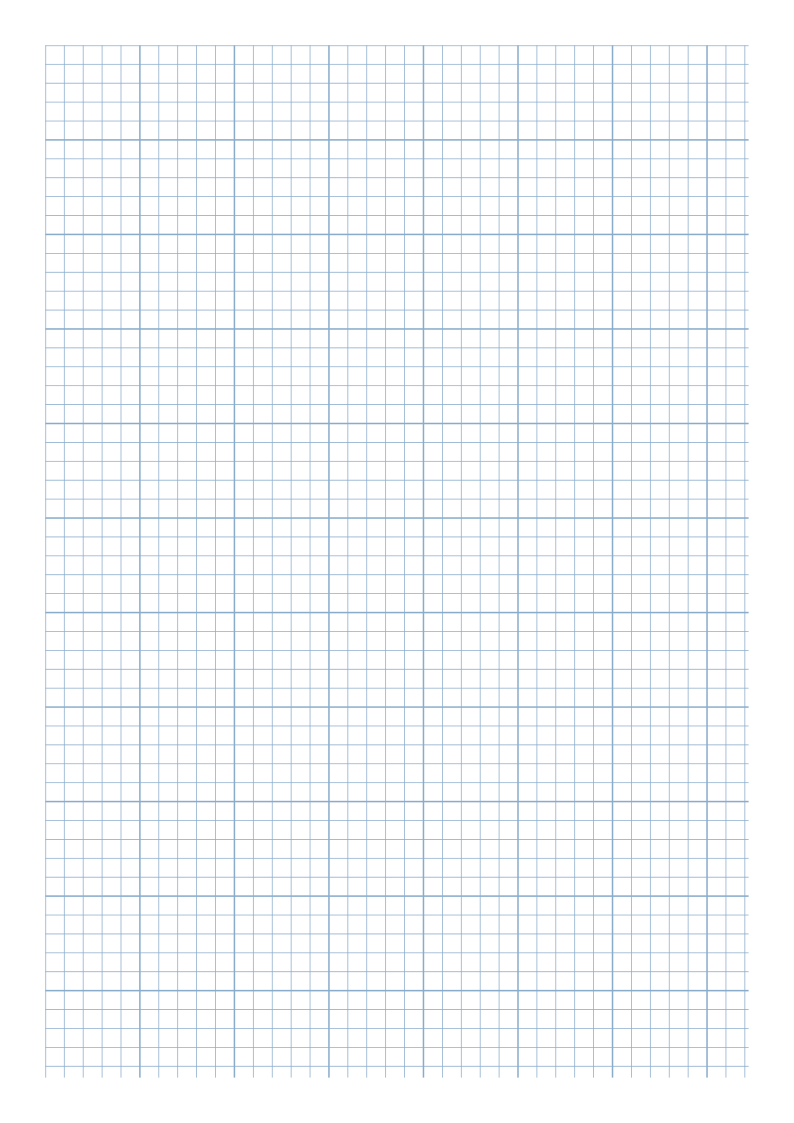
Print or export
The intended output is one PDF page; the browser controls destination naming and saving. If unavailable, use a desktop browser with a PDF destination or keep the SVG. Follow the pack workflow for six pages.
Match paper size and orientation. Print at 100% / Actual Size and check one test sheet before making copies.
Check scale separately
When printing a saved PDF, the viewer or driver can apply a second scale. A correctly sized PDF page does not establish physical spacing. Measure both 100 mm targets on a real print before relying on dimensions.
Open Print Accuracy Helper · Follow the measurement steps and hypothetical 98 mm example
Save a mixed six-page PDF
Paper Packs combines Graph ×3, Lined ×2 and Cornell ×1 as G/G/G/L/L/C. Its repeats already make six pages, so choose one browser copy. Keep a Pack JSON backup before clearing or replacing the workspace.
Follow the complete six-page setup, backup, clear/restore and printing workflow · Open Paper Packs
Common questions
Does Export Settings save PDF?
No. It saves JSON for an editable configuration. Choose a PDF destination in the browser print dialog.
Does closing the dialog prove saving succeeded?
No. Open the actual saved file. The site cannot confirm a successful save or print.
How do I export and reopen settings JSON?
In the matching paper tool, expand Export / Import Settings. Choose Export Settings to download an editable JSON backup. To reopen it later, choose Import Settings and select that JSON file, then check the restored preview before printing. A settings JSON is separate from the fixed PDF; Paper Packs has its own Download Pack JSON and Restore Pack JSON controls.
Related tools and reading
- Graph Paper Generator
- Cornell Notes for Study Sessions
- How to Print Graph Paper at Actual Size
- A4 vs US Letter: Choosing the Right Paper
- Common Printable Paper Problems and Fixes