
Task
Take chapter notes, convert them into recall prompts and review them after reading.
What You Will Make
The main output is one A4 portrait Cornell page with a 50 mm cue column, 136 mm ruled notes column and 45 mm summary. The optional pack is six pages in G/G/G/L/L/C order.
Settings
- Paper size
- A4
- Orientation
- Vertical
- Display units
- Millimeters
- All margins
- 12 mm
- Pattern color
- #8aaccb
- Cue column width
- 50 mm
- Summary height
- 45 mm
- Notes line spacing
- 8 mm
- Line width
- 0.2 mm
Create It
- Open the Cornell configuration: A4 portrait, Millimeters and All margins 12.
- Set Cue column width 50, Summary height 45 and Notes line spacing 8. Check Line width 0.2 and Pattern color #8aaccb under Line appearance.
- Inspect all three areas. Choose Download SVG or Print / Save as PDF for the single-page version.
- For mixed materials, follow the six-page Paper Packs workflow below. Keep that pack separate from this one-page export.
Preview

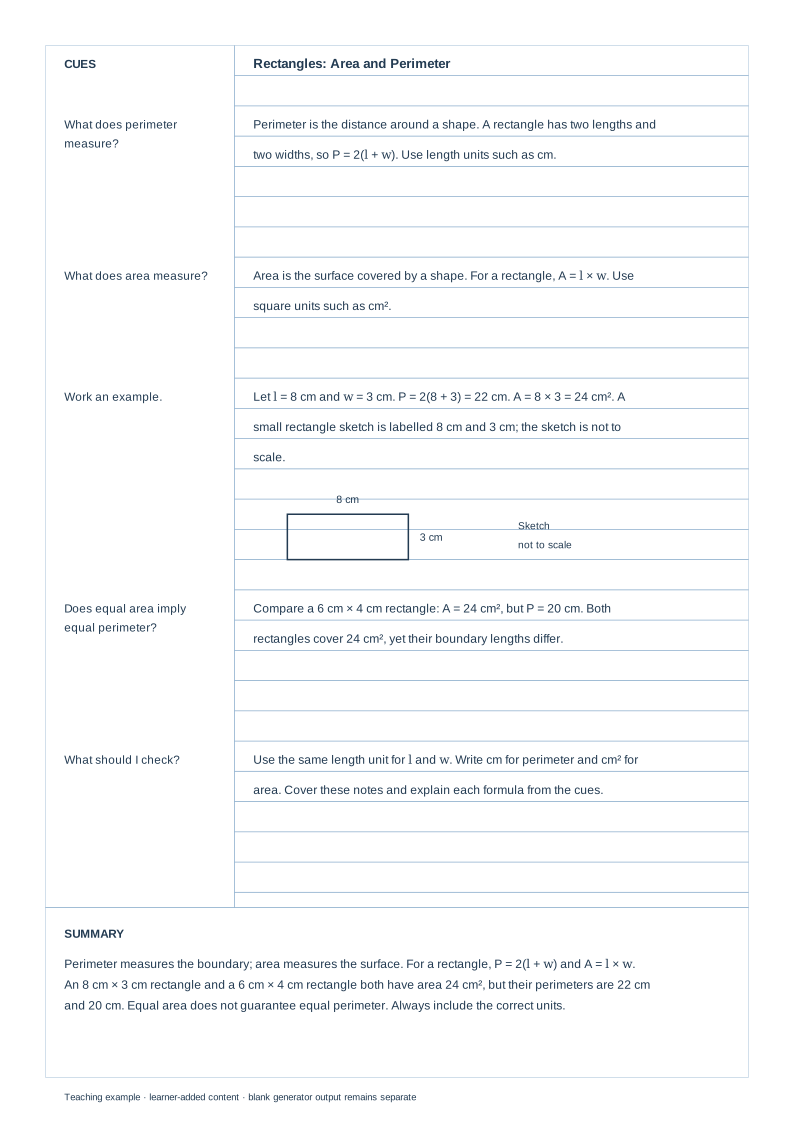
Completed teaching notes: Rectangles: Area and Perimeter
Read the complete cues and notes
- Cue: What does perimeter measure?
- Perimeter is the distance around a shape. A rectangle has two lengths and two widths, so P = 2(l + w). Use length units such as cm.
- Cue: What does area measure?
- Area is the surface covered by a shape. For a rectangle, A = l × w. Use square units such as cm².
- Cue: Work an example.
- Let l = 8 cm and w = 3 cm. P = 2(8 + 3) = 22 cm. A = 8 × 3 = 24 cm². A small rectangle sketch is labelled 8 cm and 3 cm; the sketch is not to scale.
- Cue: Does equal area imply equal perimeter?
- Compare a 6 cm × 4 cm rectangle: A = 24 cm², but P = 20 cm. Both rectangles cover 24 cm², yet their boundary lengths differ.
- Cue: What should I check?
- Use the same length unit for l and w. Write cm for perimeter and cm² for area. Cover these notes and explain each formula from the cues.
Summary
Perimeter measures the boundary; area measures the surface. For a rectangle, P = 2(l + w) and A = l × w. An 8 cm × 3 cm rectangle and a 6 cm × 4 cm rectangle both have area 24 cm², but their perimeters are 22 cm and 20 cm. Equal area does not guarantee equal perimeter. Always include the correct units.
Record the explanation and examples on the right, add questions on the left, then write the summary. Cover the notes, answer from the cues, and uncover them to check. These are learner actions; the generator supplies the blank structure.
Print or Export
Single Cornell output is one page. The optional pack uses Download Pack JSON for editing, then Prepare Print Pack and Open Print Dialog for PDF or printing. Select one browser copy.
Match paper size and orientation. Print at 100% / Actual Size and check one test sheet before making copies.
How to Use the Printed Page
Record an explanation and example on the right. Afterwards, write questions beside main ideas in the cue column and a short summary below. Cover the notes and answer cues before checking. You organize and summarize your learning; the tool draws the layout.
Check the Result
The vertical divider stops at the summary; only notes are ruled. For the optional pack, verify graph pages 1–3, lined 4–5 and Cornell 6 before and after restoring JSON.
Build and restore a six-page study pack
This optional pack is a separate output: Graph ×3, Lined ×2, Cornell ×1. It uses A4 portrait throughout and existing blank papers, without generating lesson content.
Complete pack configuration
In Pack setup, set Pack name to Six-page Classroom Materials, Paper size to A4 and Orientation to Vertical. For each paper, use Configure & Add Sheet or Edit to set Display units to Millimeters, Margins to 12 and Pattern color to #8aaccb. Graph: Grid spacing 5, Line width 0.2, Major line every (0 = off) 5, Repeat 3. Lined: Line spacing 8, Line width 0.2, Left guide offset (0 = off) 20, Repeat 2. Cornell: Cue column width 50, Summary height 45, Notes line spacing 8, Line width 0.2, Repeat 1. Math layout is off.
- Open Paper Packs. If you need the current workspace, Download Pack JSON first. Choose New Pack, then Paper size A4 and Orientation Vertical; select Apply Page Setup.
- Under Sheet or preset, choose Graph paper and Configure & Add Sheet. Review the settings above and choose Apply. Add Lined paper and Cornell notes the same way. Set Repeat (1–10) to 3, 2 and 1 respectively.
- Use Move Up or Move Down to arrange Graph, Lined, Cornell. To practice reordering, move Lined above Graph and then move it back. The final expanded order must be G/G/G/L/L/C.
- Alternatively choose Load six-page classroom example for that exact built-in configuration. Inspect all six page thumbnails: graph 1–3, lined 4–5, Cornell 6.
- Open JSON backup & restore and choose Download Pack JSON. Choose Clear Current Pack, confirming only after keeping your backup. Restore Pack JSON, review the summary and select Replace Current Workspace. Inspect all six pages again.
- Choose Prepare Print Pack, then Open Print Dialog. Match A4 portrait, 100% / Actual Size, no fitting or headers/footers and one browser copy. Save as PDF if offered. Open the file and check six pages in G/G/G/L/L/C order.
Open Paper Packs · Download the complete six-page Pack JSON



These are source-generated pages. PDF saving and physical printing are separate operations; closing a dialog does not confirm either succeeded.