
Who this helps
For a source preview that looks right but a file or print that does not. Keep the same source while testing print settings.
Small cells: check scaling
Check browser, PDF viewer and driver for Fit to Page or a custom percentage. Select 100% / Actual Size. Do not enlarge source spacing to hide unexplained shrinking.
Missing edges: check clipping
Hardware can clip an outer line while spacing stays correct. Compare boundaries and try All margins 20 before assuming the sheet is scaled.
Faint lines and extra pages
Darken Pattern color or increase graph Line width for faint lines. For extra pages, match format/orientation and disable headers and footers; inspect browser margins. In Paper Packs, also check Repeat and expanded count.
Reproducible settings
- Paper size
- A4
- Orientation
- Vertical
- Display units
- Millimeters
- All margins
- 12 mm
- Pattern color
- #8aaccb
- Grid spacing
- 5 mm
- Line width
- 0.2 mm
- Major line every (0 = off)
- 5
Four quick symptom checks
These are checks to try, not a confirmed diagnosis. Change one setting at a time and compare a fresh result.
- Cells print too small
- Check Fit to Page and custom scale in the browser, PDF viewer and driver. Change one setting at a time toward 100% / Actual Size, print again, and remeasure the same grid span on both axes.
- Page edges are clipped
- Compare All margins with the printer’s documented unprintable area. Increase All margins if needed without changing grid spacing, then print again and inspect all four edges.
- Lines are too faint
- Check Pattern color or Line width where available. Change the color or an applicable line width, then print one test sheet. For dot paper, use Dot diameter instead of Line width.
- Extra blank pages appear
- Check Paper size, Orientation, headers and footers, and extra browser margins. In Paper Packs, check Repeat against the expanded page count too. Change one setting, reopen print preview, and confirm the intended page count.
Create it step by step
- Open the diagnostic graph configuration: A4 portrait, Millimeters, 12 mm margins, 5 mm spacing, major interval 5, Line width 0.2 and Pattern color #8aaccb.
- Choose Print / Save as PDF. Inspect whether a saved single-sheet PDF has one page before printing; match format and orientation throughout.
- For scale symptoms, use the helper below. For clipping, change only All margins; for faint output, change one appearance setting.
- Record what changed and compare a fresh test. Return to the original source if that change did not address the symptom.
Generated sample
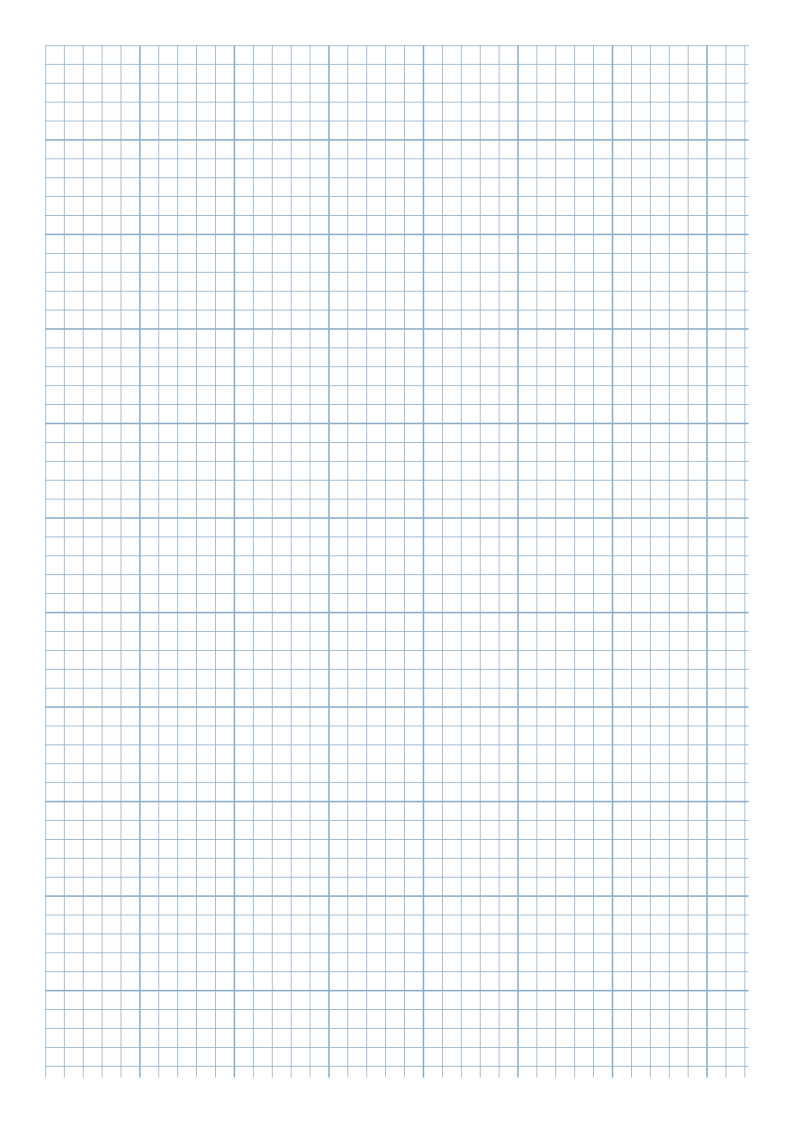
Print or export
Download SVG provides a single diagnostic grid independent of PDF saving. A screen check does not verify physical print accuracy.
Match paper size and orientation. Print at 100% / Actual Size and check one test sheet before making copies.
Check scale separately
If cells seem too small, use the separate scale-test sheet to check both axes. Keep the source grid unchanged while inspecting fitting and custom scale; differing readings alone do not identify a printer fault.
Open Print Accuracy Helper · Follow the measurement steps and hypothetical 98 mm example
Common questions
Can larger source spacing fix a small print?
First remove unintended print scaling, then measure the intended 5 mm grid again.
Do differing helper axes prove a driver fault?
No. Flatten the page, remeasure tick centers, then check scaling settings individually.
Related tools and reading
- Graph Paper Generator
- 5 mm Graph Paper for Math Practice
- How to Print Graph Paper at Actual Size
- How to Adjust Printable Paper Margins
- How to Save Printable Paper as PDF